Workspaces
A workspace is a saved layout for one kind of work. Switch with the tabs in the toolbar or Alt 1 to 7; each remembers how you arranged it.
The seven workspaces
| Workspace | Layout |
|---|---|
| Level | World on the left, Viewport and Game in the centre, Inspector, Lighting and Navigation on the right, Content and Console below. |
| Animation | The Animator in the centre with World, Inspector and Ragdoll on the left. |
| Materials | The Material Editor in the centre, Content on the left. |
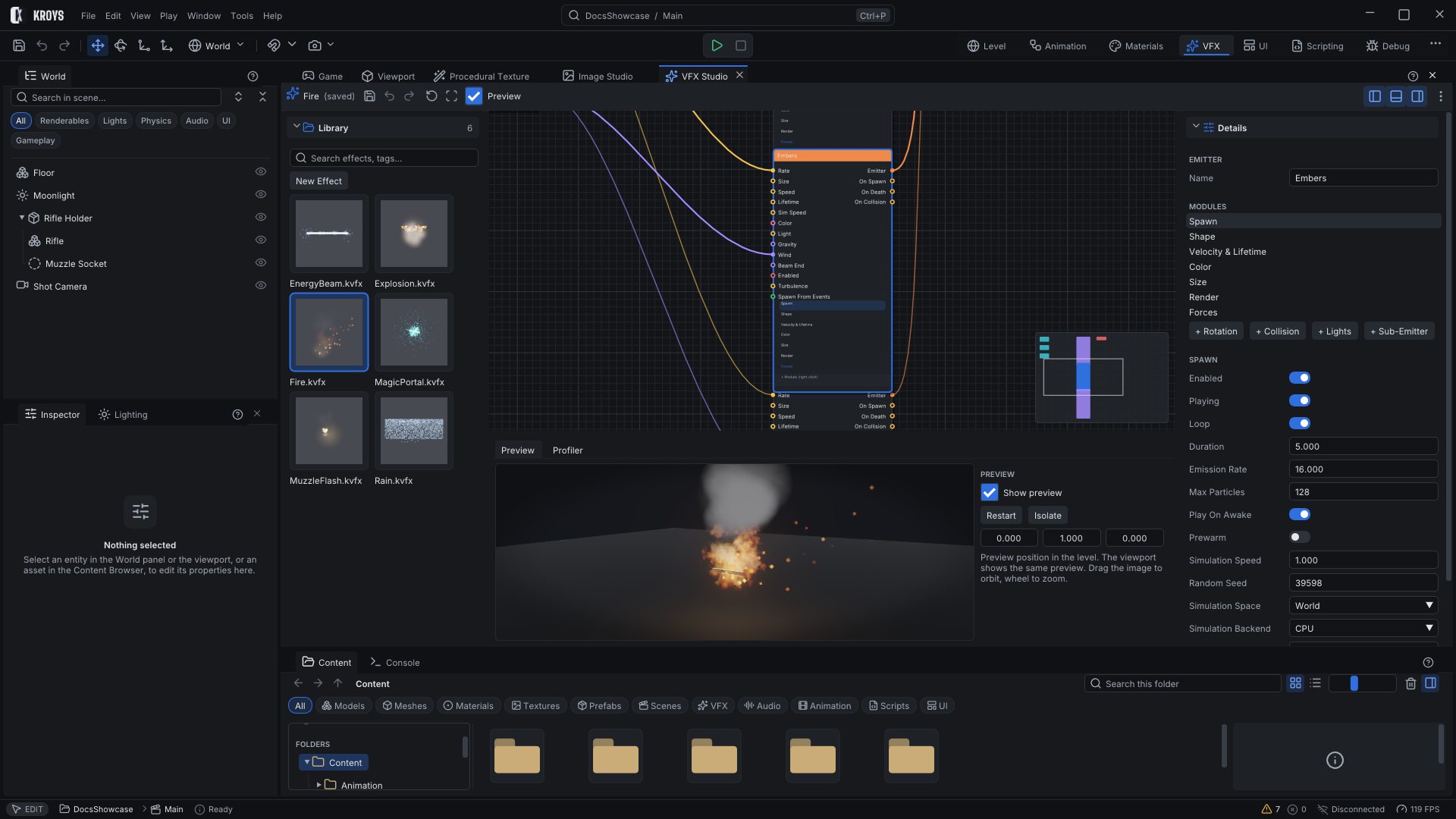
| VFX | VFX Studio in the centre, with Image Studio and Procedural Texture as tabs. |
| UI | The UI Editor in the centre. |
| Scripting | The Viewport over the Game view, Console selected in the bottom drawer, Inspector on the right. |
| Debug | Viewport and Game with Profiler, Statistics, Network and Tasks around them. |
The core panels (Viewport, Game, World, Inspector, Content, Console) are in every workspace; the others belong to the workspaces that need them, and Window opens any panel anywhere.
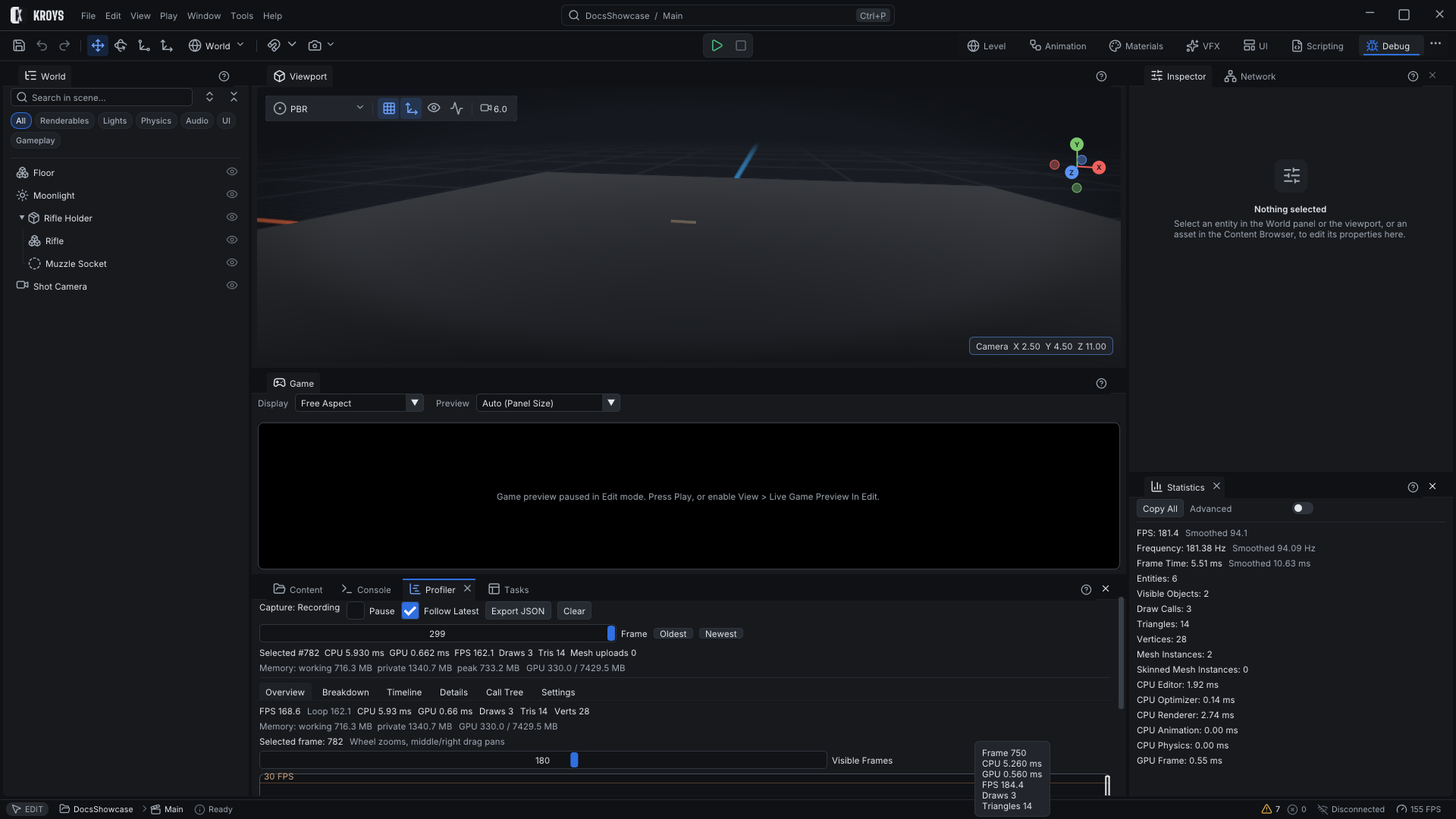
Opening an editor switches the workspace
Double-click an animator controller, a VFX effect, a UI document or a material and the matching workspace comes to the front with the editor open. If the editor is already on screen, nothing moves. Turn this off with Switch Workspace When an Editor Opens in the workspace menu.
Your layout is kept
Change a layout by dragging panels; the workspace saves it automatically and a dot on its tab marks it as changed. Right-click a tab for:
- Save Layout: save now.
- Reset Layout: back to the default.
- Restore Previous Layout: bring back the layout from before an engine update replaced it.
Layouts are saved per user, not in the project, so everyone on a team can arrange the editor their own way.
One window per tool
The authoring editors (Animator, VFX Studio, UI Editor) share one layout inside their window: library on the left, the graph or canvas in the middle, the inspector on the right, and the live preview and timeline at the bottom. Their regions are resizable and collapsible with the buttons at the right end of the editor's toolbar, and the sizes are remembered per editor type.
KroysEngine 0.1.0 documentation, built from the engine repository by Tools/BuildDocsSite.py.