Animator
State machines, blend trees, layers and events for skinned characters, edited in one window with the character playing live at the bottom.
The window
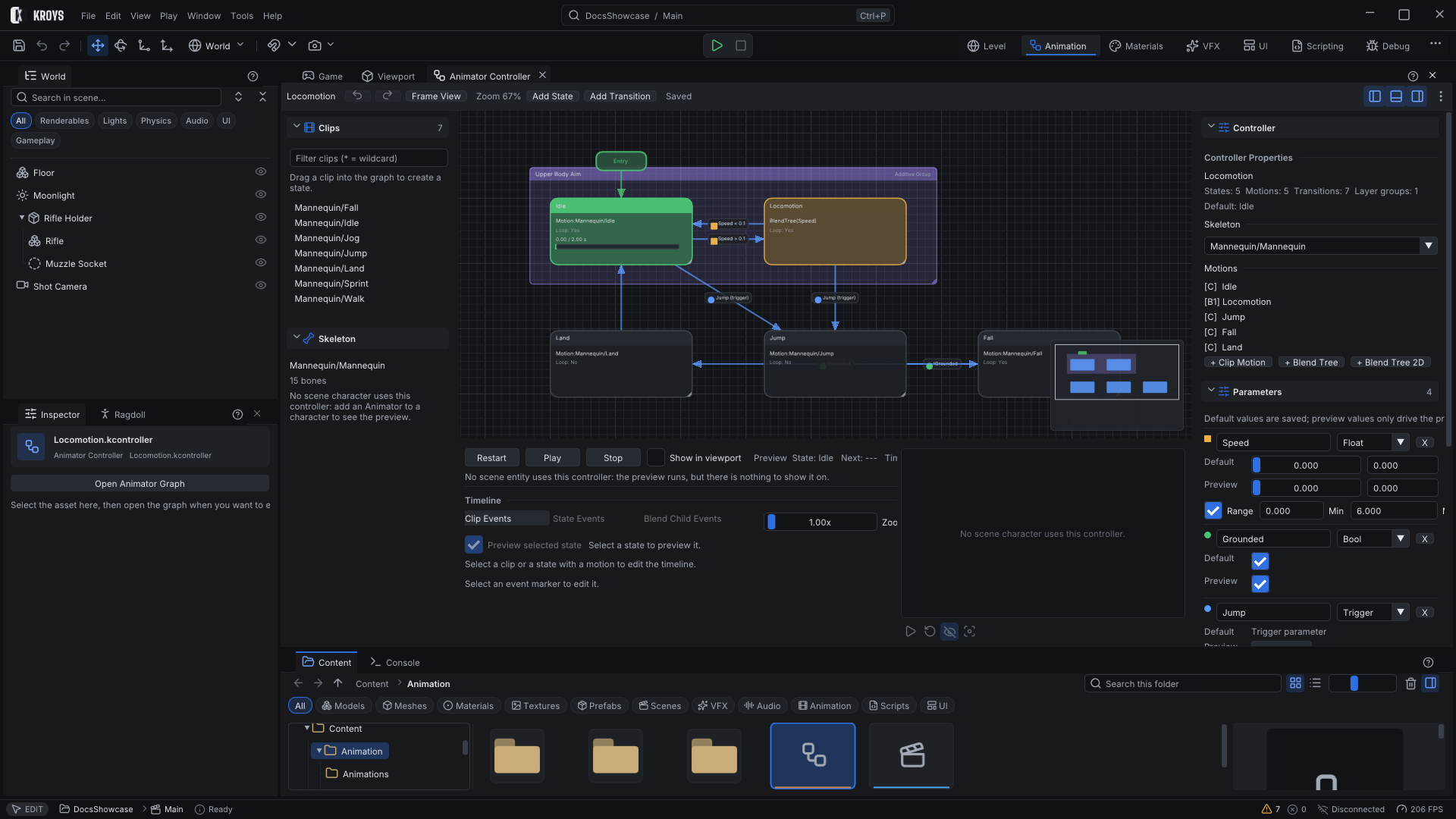
Double-click an animator controller (.kcontroller) and the Animation workspace opens the Animator: clips on the left, the graph in the centre, the inspector column on the right and the timeline with the live preview at the bottom.
The controller stays open while you select other things in the scene, until you open another controller.
Clips and skeleton
The left column lists the clips of the controller's skeleton, with a filter, and a summary of the skeleton. Drag a clip into the graph to make a state that plays it.
The state graph
States and the transitions between them. A state plays a clip or a blend tree. Wheel to zoom, drag to connect states with transitions, and select a state or transition to edit it in the Selection section. The entry node points at the default state.
Parameters and transitions
Parameters are named values the graph reads: float, int, bool and trigger. Transitions test them (Speed greater than 0.1, Grounded is true), and blend trees mix clips by them. Scripts set them every frame:
A trigger stays set until a transition consumes it. Use triggers for one-off actions (jump, attack) and bools for states that last.
LocomotionAnimation.cs
public sealed class LocomotionAnimation : EntityScript
{
    protected override void OnUpdate(float deltaTime)
    {
        if (!Animator.Has(Entity) || !CharacterController.Has(Entity)) return;
        // The character moves in fixed steps; its achieved velocity is steady between them,
        // so reading it every frame gives a smooth animation speed.
        Vector3 velocity = CharacterController.GetAchievedVelocity(Entity);
        Animator.SetFloat(Entity, "Speed", new Vector2(velocity.X, velocity.Z).Length());
        Animator.SetBool(Entity, "Grounded", CharacterController.IsGrounded(Entity));
        if (Input.IsActionPressed("Jump"))
            Animator.SetTrigger(Entity, "Jump");
    }

    protected override void OnAnimationEvent(AnimationEvent animationEvent)
    {
        // Markers placed on a clip in the Animator arrive the moment the pose crosses them.
        if (animationEvent.Name == "Footstep")
            Debug.Log("step");
    }
}
Layers
A layer plays a clip on top of the current state with a weight, a mode (Override or Additive) and a bone mask, so an upper-body layer can aim or reload while the base state walks. Layer groups apply a layer to a chosen set of states: on the graph a group is a frame, and the states inside the frame belong to it. Its settings are in the Layers section of the inspector column.
Events
Place event markers on a state's or clip's timeline. When the pose crosses a marker, the animator raises the event: scripts on the entity receive it in OnAnimationEvent (AnimationEvent), with its name and an optional number or string payload. Footsteps, weapon hits and sounds are typical events. The live preview next to the timeline frames the character, can isolate it from the rest of the scene and orbits with the mouse.
Root motion
For characters, keep the imported visual and its Animator under the entity with the Character Controller. In a clip's settings, Root Motion › In Place removes horizontal travel from the pose so input moves the capsule. Extract Locomotion keeps vertical motion and rotation in the pose and extracts the horizontal travel; with Apply Extracted Root Motion on the Animator, the animation moves the capsule through collision sweeps instead of input.
Ragdolls
The Ragdoll panel (Animation workspace) builds physics bodies for a character's bones. At run time a ragdoll follows the animation, goes limp, or blends between both; scripts switch with the Ragdoll component.
KroysEngine 0.1.0 documentation, built from the engine repository by Tools/BuildDocsSite.py.