UI editor
Game menus and HUDs are UI documents laid out on a canvas at the player's resolution, with styles, bindings to input actions and a live preview.
The window
Double-click a UI document (.kui) and the UI workspace opens the UI Editor: the library and widget tree on the left, the canvas in the centre, properties on the right and bindings and issues below the canvas.
Preview runs the document with input, so buttons react as in the game.
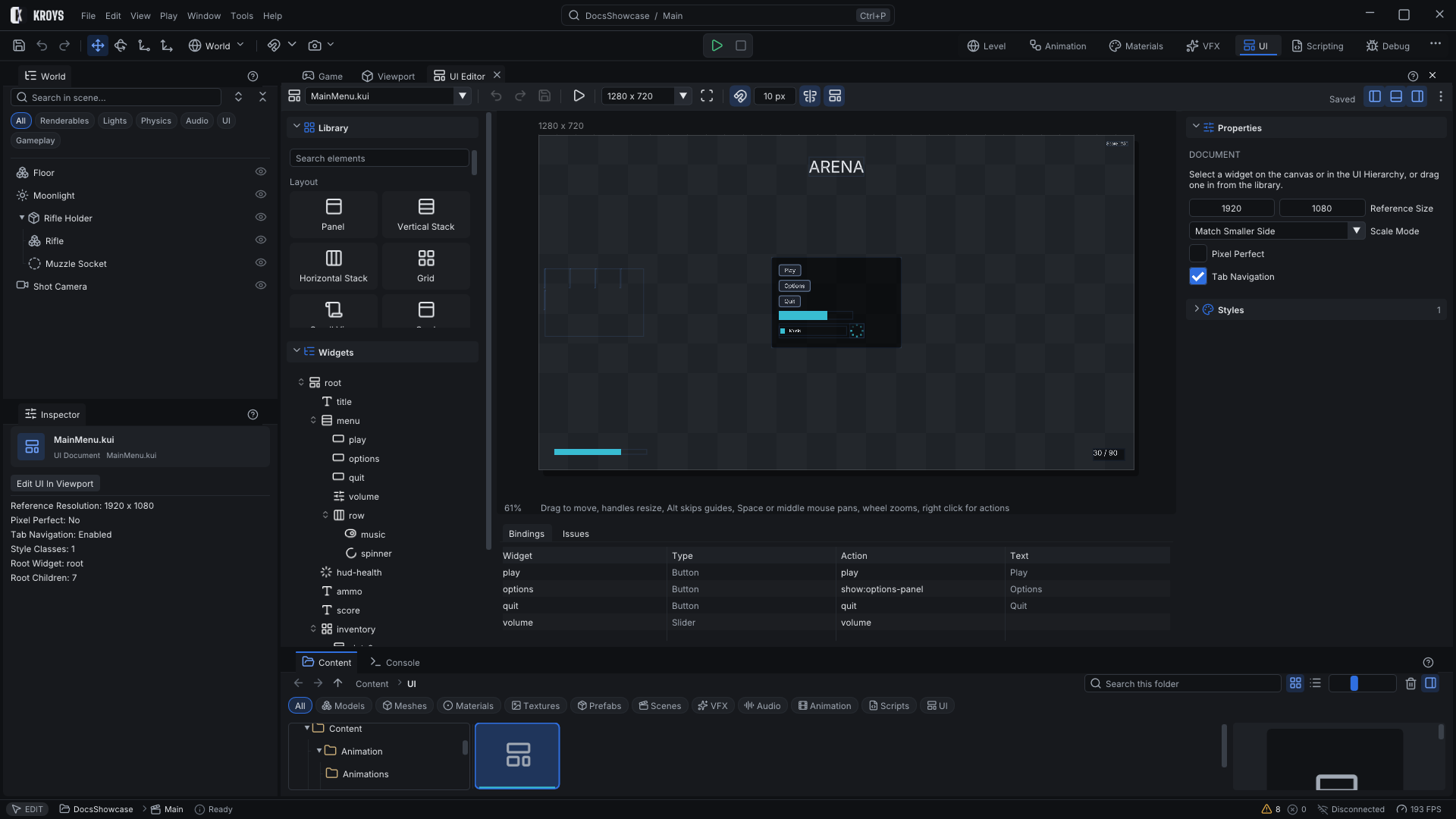
Library and widgets
The Library holds the widgets to add: panel, text, button, image, slider, toggle, progress bar, stacks and grids, and more. The Widgets tree under it shows the document's hierarchy.
The canvas
The document at a chosen resolution, with zoom, pan, selection handles, snapping and smart guides. Anchors keep widgets in place when the resolution changes.
Properties and styles
Properties shows the selected widget's layout, appearance and text, or the document's settings (reference size, scale mode, tab navigation) when nothing is selected. Styles are shared looks: give widgets a style class and change them all in one place.
Bindings and issues
Bindings lists every widget that triggers an action, with its id, type and action. Issues lists problems such as duplicate ids or missing images and templates.
Show it in the game
Put a UI Canvas component on an entity and pick the document. A screen-space canvas draws over the game view at the document's reference resolution; a world-space canvas is a panel in the scene. View › Show UI In Viewport shows screen canvases in the editor too.
Drive it from scripts
Widgets have ids. Scripts set texts and values by id and react to buttons through the actions bound in the editor: UI.SetText(canvas, "score", "120") and the UIWidget helpers. A button's action is an input action name, so a menu works with the mouse, the keyboard and a gamepad alike.
KroysEngine 0.1.0 documentation, built from the engine repository by Tools/BuildDocsSite.py.