VFX Studio
Effects are graphs of emitters, parameters and events, edited in one window with the effect burning in its own preview and a profiler next to it.
The window
Double-click an effect (.kvfx) or open the VFX workspace. VFX Studio is one window with four areas around the effect graph: the library on the left, the graph in the centre, details on the right, and the preview with its profiler below the graph. The buttons at the right end of its toolbar show or hide the side areas.
Every save updates the preview and every instance of the effect in the scene.
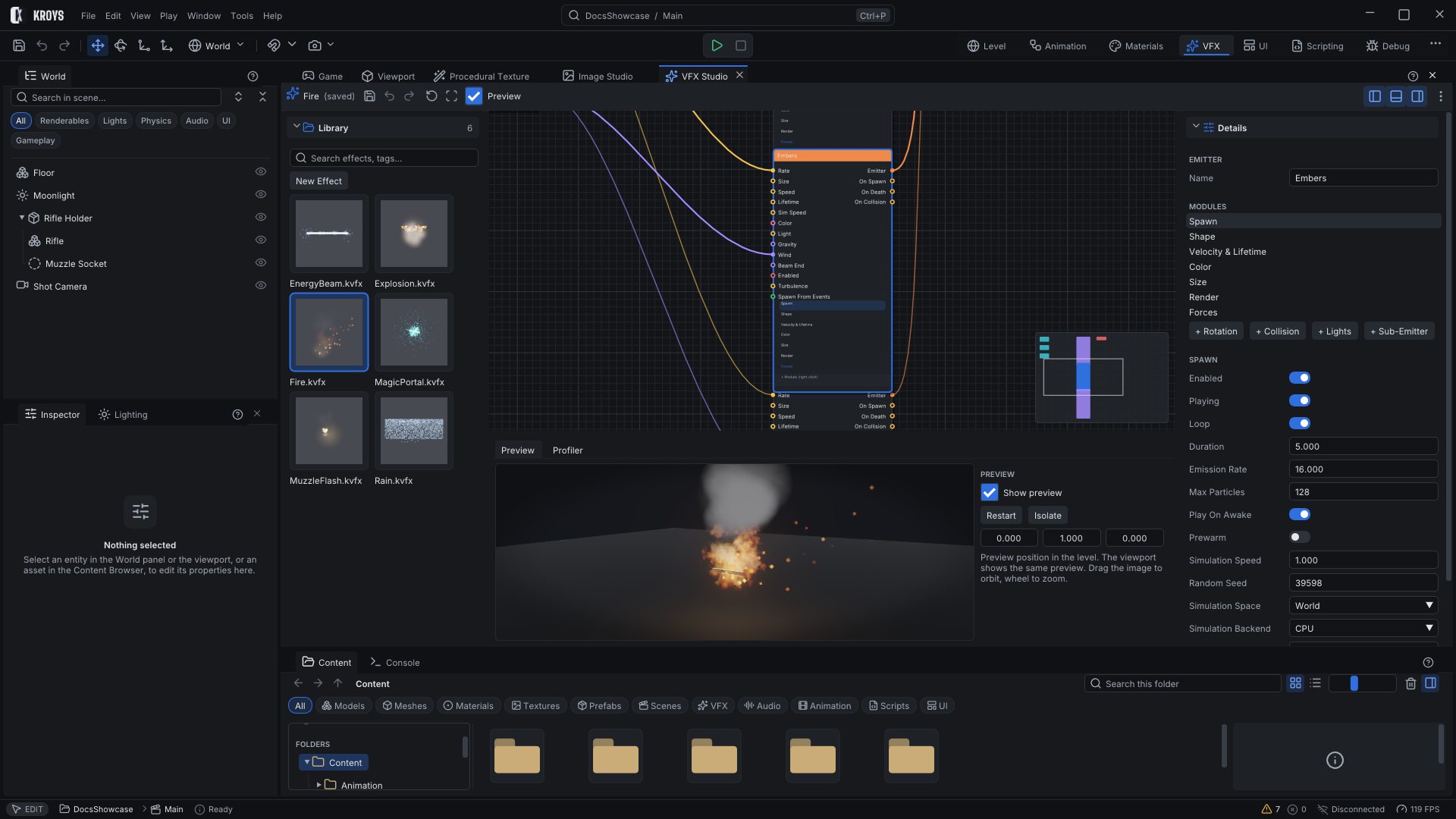
Library
Every effect of the project as a thumbnail, with search over names, tags and descriptions, and New Effect. Click an effect to open it; its thumbnail renders in the background and refreshes after each save.
Graph
The effect node, one node per emitter with its module stack (spawn, shape, velocity, colour, size, render; optional forces, rotation, collision, lights and sub-emitters), and parameter and event nodes. Right-click the canvas or press Tab to add a node; drag between pins to wire them.
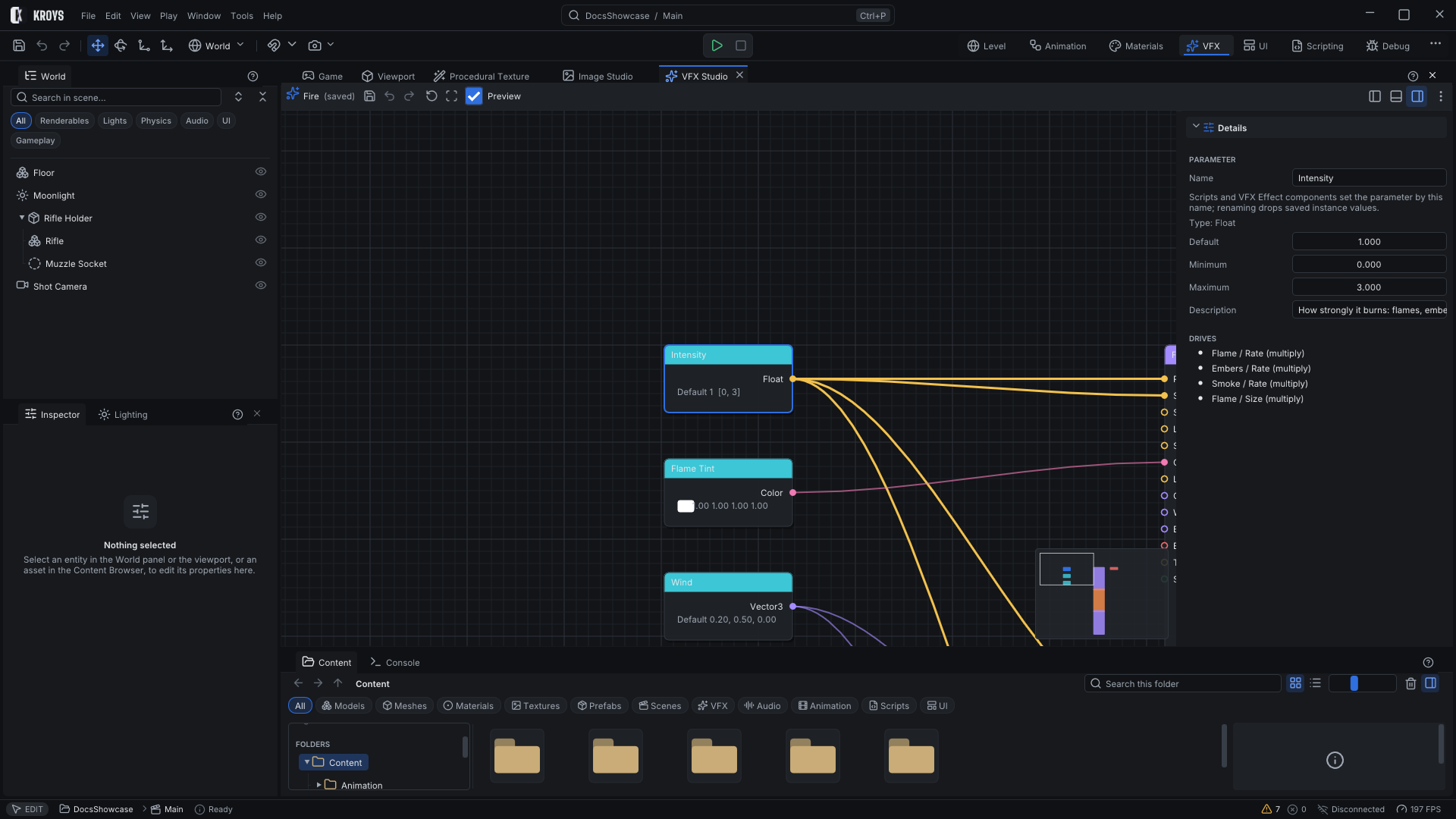
Details
The selected node's settings: for an emitter, its modules and every value they use; with nothing selected, the effect's description and tags. Add the optional modules with the buttons under the module list.
Preview and profiler
Preview plays the effect at a preview position in the level, with restart and isolate; drag the image to orbit and use the wheel to zoom. Profiler lists particle counts, CPU and GPU time, draws and events per emitter, so you see what an effect costs while you tune it.
Parameters
Parameters (float, colour, vector, bool) are an effect's knobs. Wire a parameter into an emitter input to drive it: emission rate and bursts, size, speed, lifetime, simulation speed, colour, light intensity, turbulence, gravity, wind, beam end, enabled. Each placed effect can override parameter values in the Inspector, and scripts change them while the game runs with Vfx.SetParameter (Vfx).
Events
Emitters can raise events On Spawn, On Death and On Collision of their particles. An event can spawn another effect at that point, spawn particles in another emitter of the same effect, or notify scripts (Vfx.PollEvent returns the event name and position). Events have a probability and a per-second budget, so a heavy effect cannot flood the scene.
Placing effects
Drag an effect from the Library or the Content panel onto the Viewport: the entity gets a VFX Effect component playing it. Scripts play, stop, pause and resume effects with the Vfx class.
Sharing effects
Export VFX Package... in an effect's context menu writes a .kvfxpack with the effect and everything it references (materials, textures and their editable sources). Import VFX Package... in another project checks every file, reuses identical ones and refuses to overwrite a different file at the same path.
Textures for effects
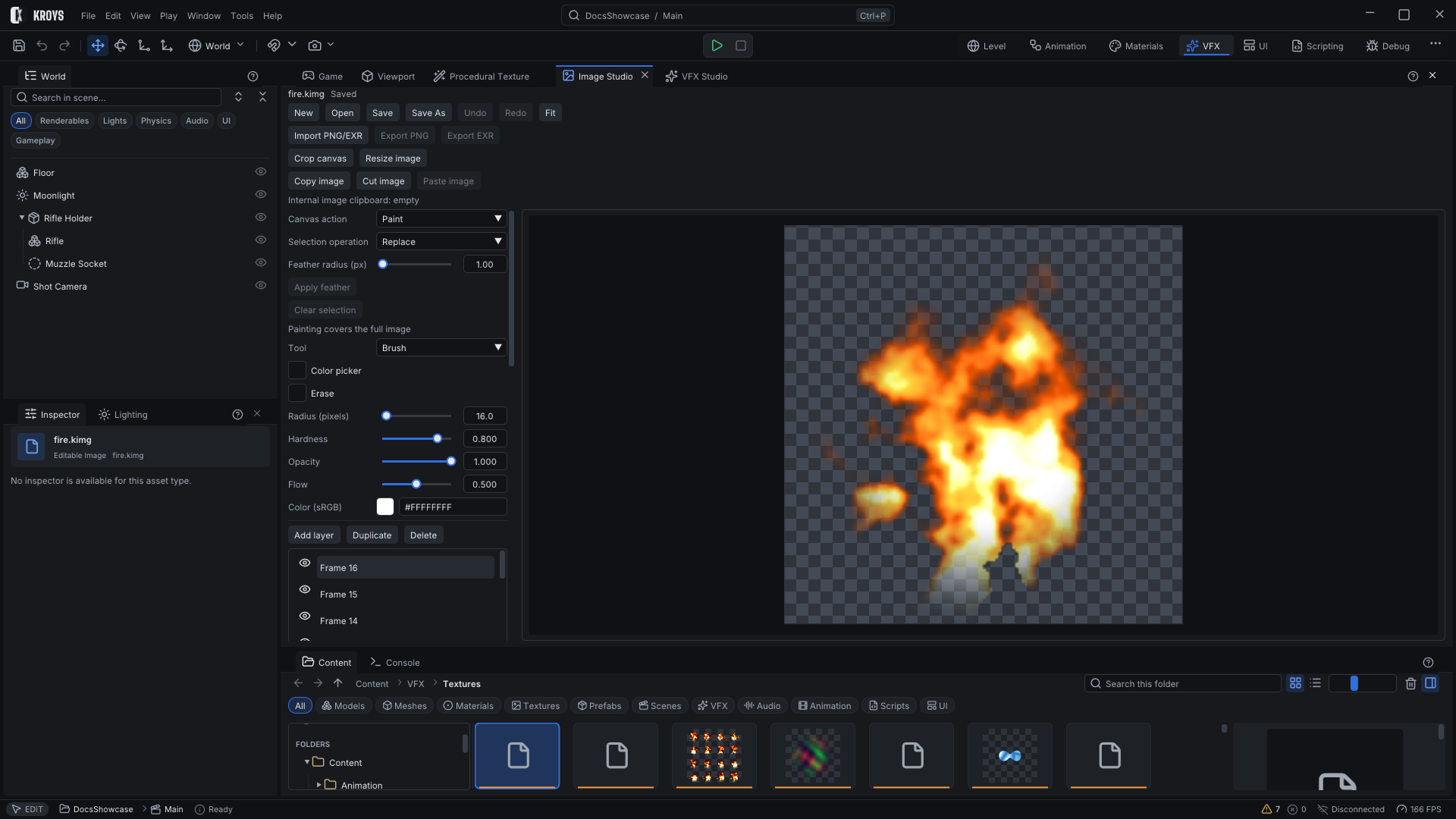
The VFX workspace also holds Image Studio (a layered image editor with brushes, selections, masks and flipbooks) and Procedural Texture (node graphs that bake noise, gradients and patterns to textures or flipbooks). See Image tools.
KroysEngine 0.1.0 documentation, built from the engine repository by Tools/BuildDocsSite.py.