Materials
Materials are node graphs that compile to shaders in the background while the old shader keeps drawing. Instances change parameters without a graph.
Open a material
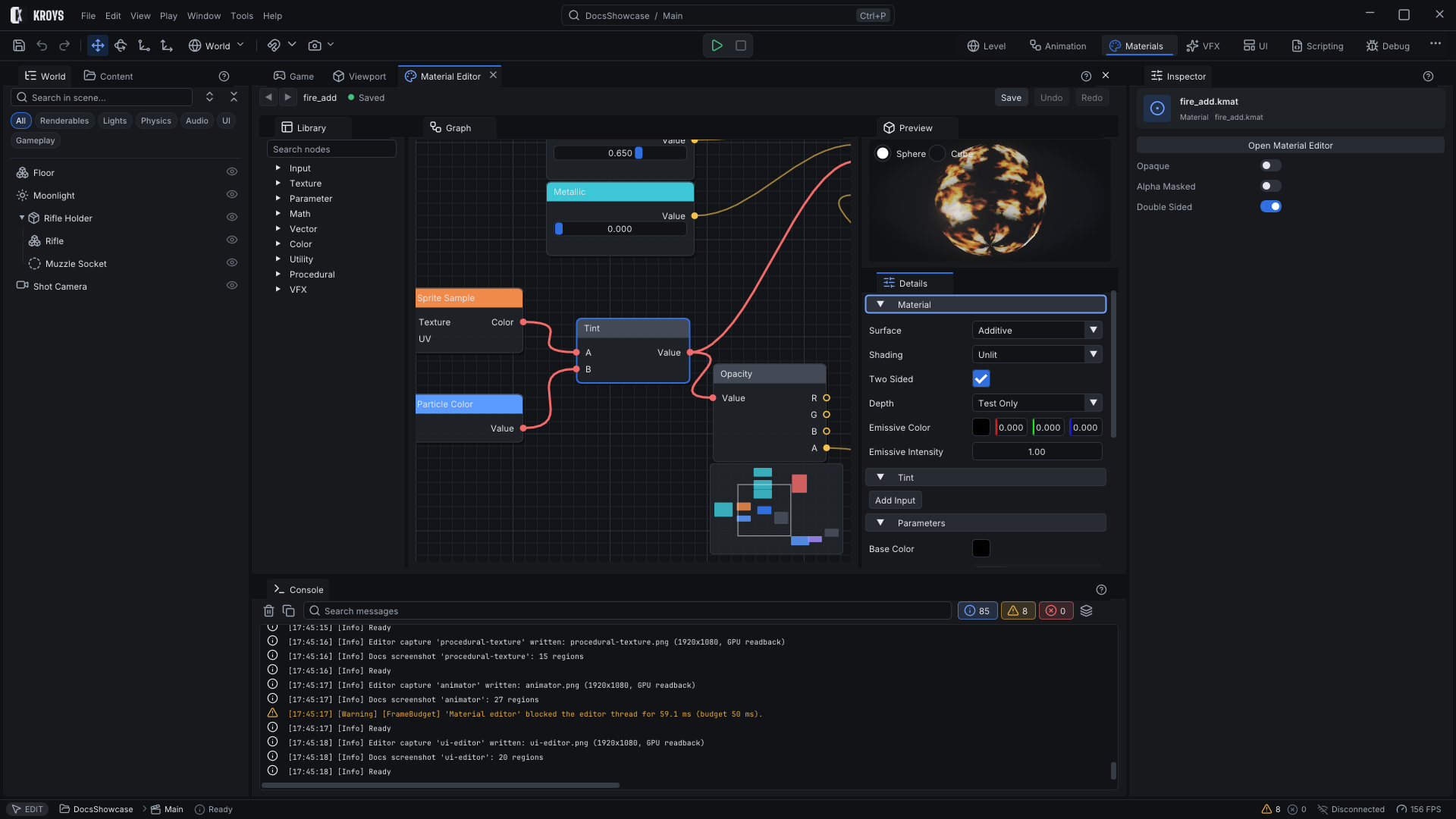
Double-click a material in the Content panel. The Materials workspace opens with the Material Editor: the Library of nodes, the Graph in the middle, a Preview of the material on a shape and Details with every input of the material output.
Working in the graph
| Action | How |
|---|---|
| Add a node | Right-click or Tab for search, or drag from the Library |
| Add a texture | Drag it from the Content panel onto the graph |
| Connect | Drag between pins; incompatible pins dim |
| Move a wire | Drag it off the input it is plugged into |
| New node from a wire | Drop the wire on empty space and pick a node; it connects itself |
| Remove a wire | Right-click it, or Alt-click |
| Pan and zoom | Middle or right drag, the minimap; mouse wheel |
| Frame | F frames the selection or everything |
| Duplicate, copy, paste, delete | Ctrl+D, Ctrl+C, Ctrl+V, Del |
| Undo, redo | Ctrl+Z, Ctrl+Y; one drag is one step |
Edits save themselves after a second; Ctrl+S saves at once.
The node library
Nodes by category: inputs, textures, parameters, math, vectors, colours, utilities, procedural patterns and the particle inputs effects use. Type in the search field or open a category, then drag a node onto the graph.
Parameters in Details
Details lists every input of the material output. Changing one that has no node creates and connects it: a parameter for colours and values, or the texture, sample and normal-map nodes for a normal. An input fed by a texture shows that texture; one built from other nodes shows its source, and clicking it selects that node.
How edits reach the screen
Moving nodes never touches the shader. Other edits build in the background and the previous shader keeps drawing until the new one is ready, in the Preview and in the scene. If an edit cannot be built, the last working shader stays on screen, the node is outlined in red and Details says what is wrong; the compiler's own output goes to the Console. Shaders are named by a hash of their source, so an unchanged shader is never rebuilt.
Instances and imported materials
A material instance (.kmatinst) has no graph: tick a parameter to override its parent's value. Materials imported with a model edit their surface values directly; those edits are saved beside the project, never into the source model.
To edit several materials at once, select them in the Content panel (Ctrl+A selects a whole folder) and change Opaque, Alpha Masked, Double Sided or Alpha Cutoff in the Inspector. Only the property you change is written.
KroysEngine 0.1.0 documentation, built from the engine repository by Tools/BuildDocsSite.py.